

By Julian Bringold, Co-founder of SeveUp ·
Quick answer
The Notifications page lists your notifications from newest to oldest, twenty at a time. The All and Unread tabs filter the list, Mark all read sets everything to read, and clicking a notification marks it read and opens its target when it has one.
Free 14-day trial, no credit card.
The SeveUp App notifications page gathers in one place what the application has flagged for you. You can reread past messages, spot the ones you have not opened yet, and deal with them all at once or one by one. It is a simple screen. A few behaviours are still worth knowing: the list loads in batches of twenty, a click on a row has two possible effects depending on the notification, and switching tabs resets how many rows are loaded.
This guide walks through each element with its exact label, in the order you meet them. It also covers the error messages and empty states, which can be confusing.
Before you start
You need to be signed in to SeveUp App. The page sits in the application area, not among the public pages. No setup is required: the list fills itself when the page opens, sorted from newest to oldest.
Read and handle your notifications
Display the list
The page opens on the “Notifications” title. Right below it are two tabs, All and Unread, then the Mark all read button to their right.
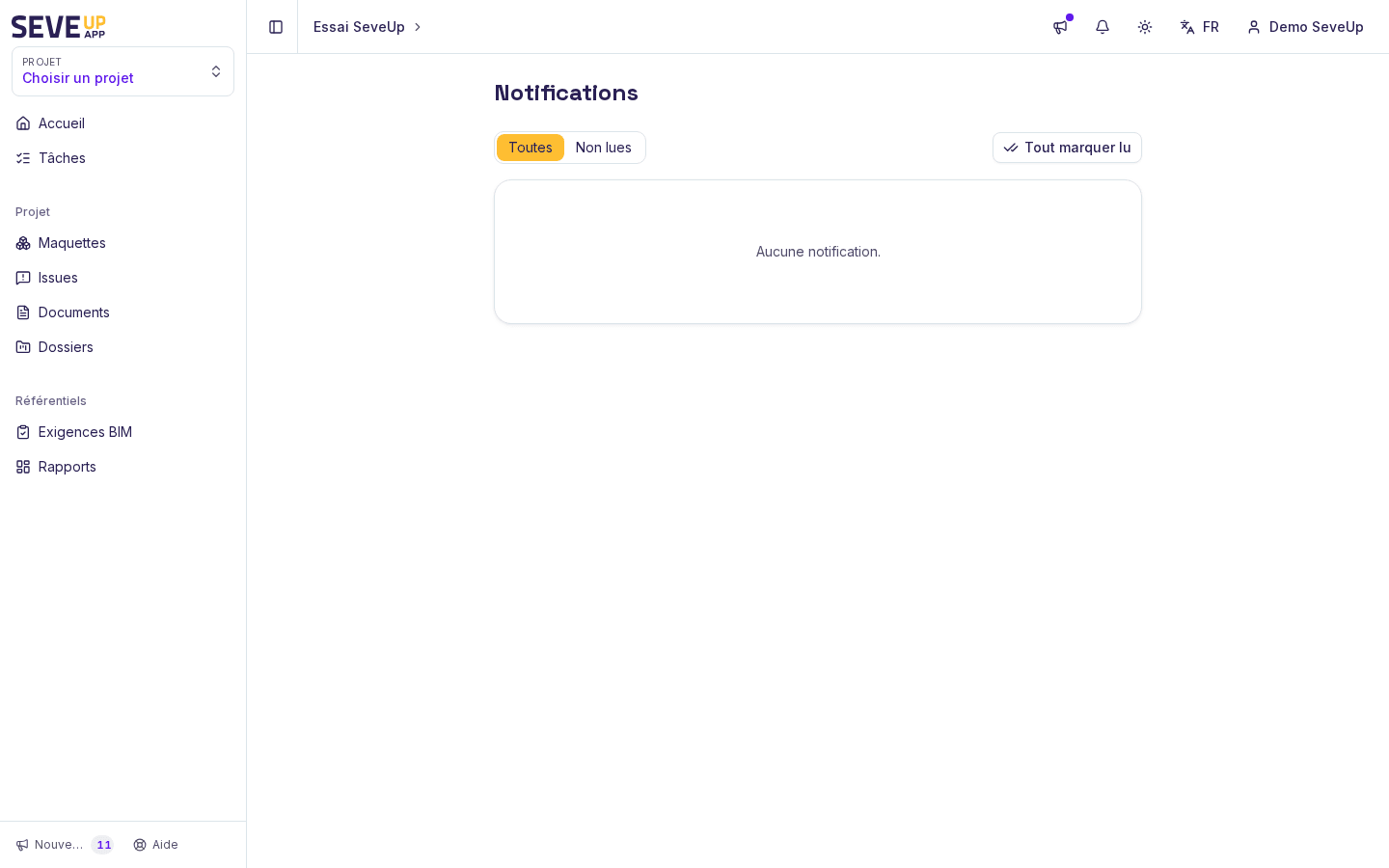
The Notifications page: tabs, Mark all read button and list While data loads, five grey blocks hold the place of the rows. Then each notification becomes a clickable row. Its first line shows the notification subject; without a subject, SeveUp App shows its category, and without a category, the word “Notification”. On the right, the date appears as year-month-day followed by the time, for example 2024-05-02 14:30. The message text, if there is one, is written below in grey. An unread notification has a small coloured dot before its subject and a tinted border.
Filter the list
Click Unread to keep only the notifications you have not opened. All brings back the full list, read and unread. The active tab is filled with colour. Switching tabs resets the counter to twenty rows: if you had already loaded forty notifications with Load more, you start again from twenty in the tab you just opened.
Open a notification
Click anywhere on the row. Two cases exist. If the notification carries an internal link, meaning an address that starts with “/”, SeveUp App takes you there. Otherwise the row is a plain button, and the click only marks it as read. A notification that is already read is left untouched, and only an unread one gets marked. Once the list refreshes, the coloured dot goes away.
Mark all read
Click Mark all read, to the right of the tabs, to set the notifications to read in one move. The button is greyed out while the request is running. When it succeeds, the list reloads. On the Unread tab it therefore empties and shows “No notifications.”, unless a new notification arrived in the meantime.
Load more
The page shows twenty notifications at a time. When the server reports more notifications than the page displays, a Load more button appears, centred under the list, and each click adds twenty rows to the ones already visible. The button is greyed out while data is being fetched. It disappears once everything is displayed.
What can go wrong
“Could not load notifications.” replaces the list
The request to the server failed, and the page swaps the list for this message in red. It offers no retry button. Reload the page, then check your connection if the message comes back.
“No notifications.” appears instead of rows
This message is not an error. It shows up when the returned list is empty. On the Unread tab it means everything is already read: click All to find your history, if there is any. On All, no notification is recorded yet.
Grey rectangles stay on screen
That is the loading state: five grey blocks stand in for the rows until the answer arrives. They disappear on their own. If the state lasts unusually long, reload the page.
A row is simply titled “Notification”
The notification has neither a subject nor a category. SeveUp App then shows the word “Notification” instead. The message text, if there is one, stays visible under that line.
Clicking a row goes nowhere
The notification has no internal link. Its row then behaves like a button that only marks it as read, without changing page. This is not a malfunction.
The Load more button does not appear
It only shows when the number of loaded rows is lower than the announced total. If it is missing, every notification for the current filter is already on screen. Also remember that switching tabs starts again from twenty rows.
The Mark all read button is greyed out
It disables itself while the previous request is running. Wait a few seconds for the list to reload, and it becomes clickable again.
FAQ
How do I mark all notifications as read?
Click Mark all read, to the right of the tabs. The request sent does not point at any particular notification, then the list reloads.
How do I show only unread notifications?
Click the Unread tab. To get back to the full history, click All.
Why does the page only show twenty notifications?
The list loads in batches of twenty. Click Load more to add twenty more, as many times as the button stays visible.
Does opening a notification mark it as read?
Yes, if it was not read yet. The click on the row triggers the marking, whether the notification opens a page or not. A notification that is already read stays as it is.
Can I mark a single notification as read without opening it?
The page has no dedicated button for that. The intended gesture is the click on the row. If the notification has an internal link, the same click takes you there too.
Can I delete a notification from this page?
No, the page has no delete control. It lets you filter, mark as read, open a notification and load more rows.
Ready to start?
Your SeveUp App workspace is ready as soon as you sign up.
Free 14-day trial, no credit card.