

Quick answer
To create a dashboard, open the Tasks page, start the Create a dashboard wizard, pick your Folders, models, BIM requirements and a template, then check the review and click Create. You get an HTML report or a Power BI template built from your model data.
Free 14-day trial, no credit card.
Introduction
The Create a dashboard wizard builds, from your models, an HTML report connected to your data or a Power BI template (.pbit). It is meant for BIM coordinators who want to follow a project's compliance or quantities without building the report by hand.
Requirements
- Pick at least one Folder or model: without one, the wizard refuses to create the dashboard.
- HTML templates depend on the account plan. If you see none in the list, your plan does not include them.
- To get Pset completeness and a compliance score, at least one BIM requirement (IDS) must be available. Without a requirement, the dashboard only contains model data.
Create the dashboard in six steps
Open the wizard
In the Tasks menu, "Data" section, open the Create a dashboard card.
Pick the Folders
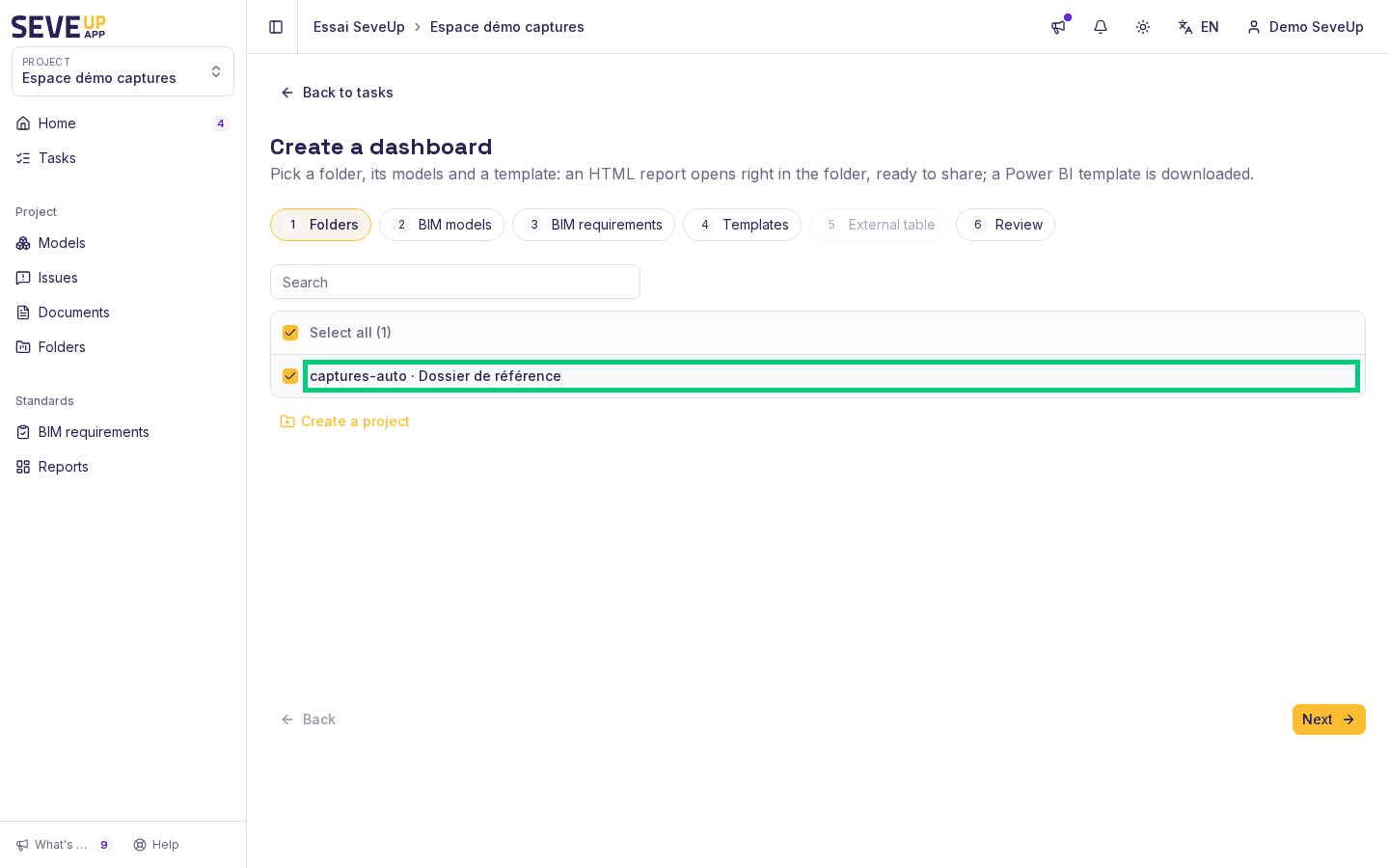
On the Folders step, pick the relevant Folders. The Next button stays disabled until a Folder is picked.
Pick the models
On the BIM models step, pick the models to include.
Pick the requirements
On the BIM requirements step, keep the requirements to evaluate ticked. Unticking a requirement removes its score section from the generated dashboard. Organization requirements are not ticked by default.
Pick a template
On the Templates step, pick a template or leave the list empty.
Set the external table
On the External table step, if the selected template reads an external table, pick the document(s) to use as its source.
The Review step then lets you check the report name and the output format before you click Create.
Choose a dashboard template
The template list has three groups: the "SeveUp catalogue", "Your organisation's templates" and the blank template. With no template picked, the wizard generates the "BIM compliance" dashboard (HTML) or a "Blank" Power BI template, depending on the chosen format.
What you get
The review announces the output before creation:
- a Power BI template (.pbit);
- an HTML dashboard, already connected to your data;
- a ZIP of Power BI templates, HTML dashboards, or both if you picked templates of different types.
For Power BI, the "Editable project (PBIP)" option provides text files to edit in Power BI Desktop. The project does not contain your access key: it reads data through a link limited to this report, which can be revoked. Publishing a report and setting its refresh are covered by Microsoft's Power BI documentation.
Open and share an HTML report
When you create a single HTML report from a single Folder, the Create and open button opens it right in the Folder. The Share online button creates a public link and copies it to the clipboard; if copying fails, the wizard shows the link so you can copy it by hand.
If a step reports a problem
- "No Data-type document in the selected folders": on the External table step, first upload a workbook from the Folder's Documents tab.
- "No table imported for this document yet": the document has not been read yet; wait for its import to finish.
- A document that matches a different contract from the one the template expects will not feed any data into the dashboard; the wizard says so.
Try it on your model
Create a free account: repeat these steps on your own files in a few minutes.
Free 14-day trial, no credit card.