

Quick answer
To sync Trimble Connect folders, first connect your account from the Connectors page (OAuth window). Then create a space from Trimble, pick the project, check the folders you want and start the creation. Unchecked folders stay in Trimble and are not imported.
Free 14-day trial, no credit card.
The Trimble Connect connector in SeveUp App links your Trimble account to the application. Once connected, you create a space from a Trimble project and choose which folders get synced, while the others stay in Trimble without being imported. It takes five steps.
This page follows the flow in order: OAuth connection, space creation, folder selection, then the messages you may run into along the way and how to deal with them. It describes what the application displays, label by label, and assumes nothing beyond that.
Prerequisites
Three things before you start.
- A Trimble Connect account whose credentials you know.
- A browser that allows popup windows for SeveUp App: the connection opens in a separate window, and the application answers “Allow popups to connect” if it gets blocked.
- A Trimble connection configured for your environment. If it isn’t, the Connect button stays greyed out.
Sync Trimble Connect folders step by step
Connect Trimble
Open the “Connectors” page. It shows one card per platform: Catenda, Trimble Connect, BIMcollab, BIM Track and Kairnial. On the Trimble Connect card, the badge reads “Not connected” until the account is linked.
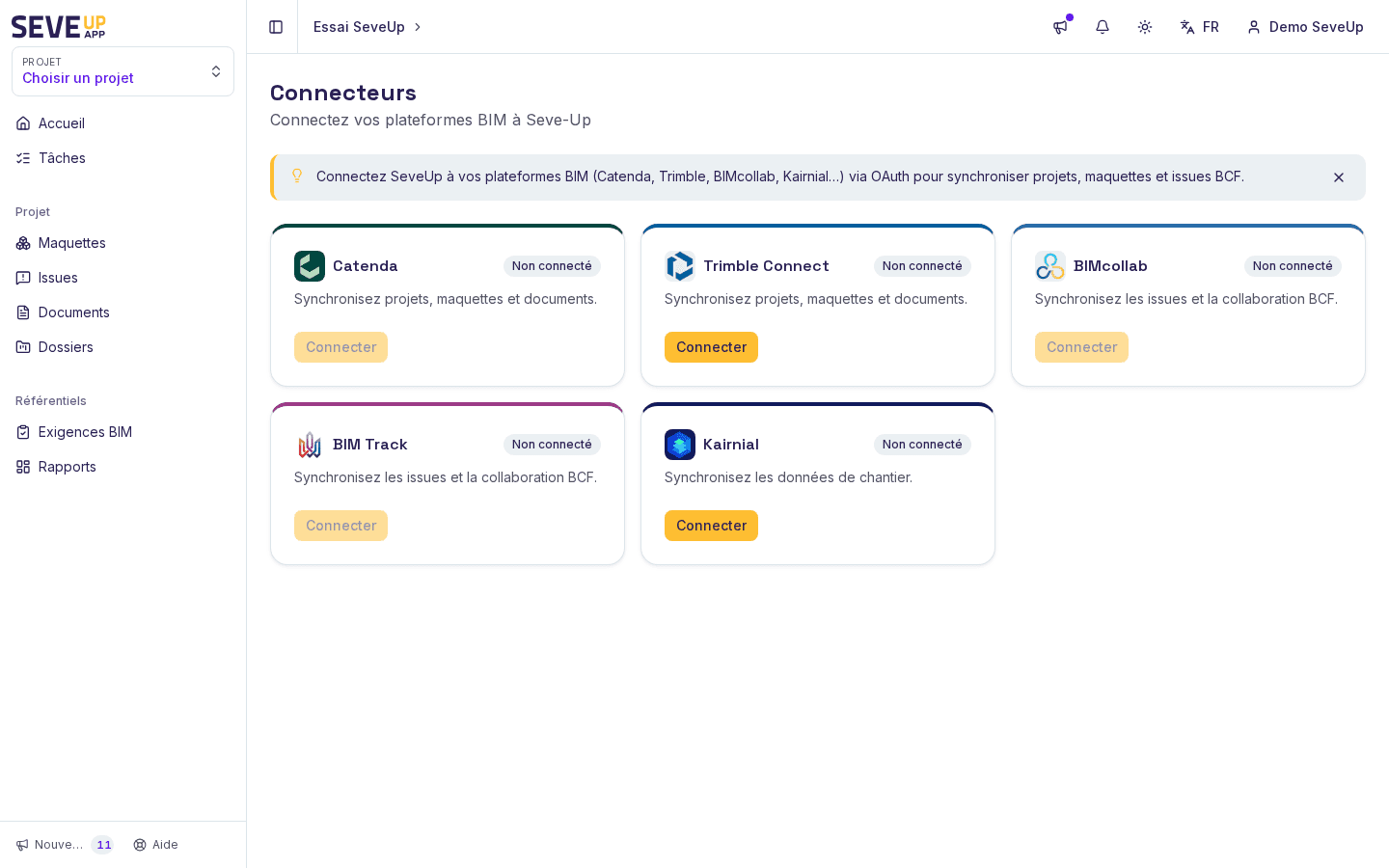
The Connectors page and the Trimble Connect card. Click Connect. A window opens so you can sign in to Trimble and authorise access. Meanwhile, the application checks every two seconds whether authorisation has been granted, then closes the window, shows “Connected” and switches the badge to “Connected”. If you close the window yourself, the application runs one last check. After three minutes without authorisation, it gives up and shows “Connection failed”.
Open the creation flow from Trimble
Start creating a space with New space. The “Create a space” screen lists the possible sources, including From Trimble. If the account isn’t connected yet, you may see the message “Connect your Trimble account before importing a project.”: go back to the previous step.
Pick the Trimble project
The “New project from Trimble” dialog opens with the subtitle “Pick a Trimble project and choose which folders to sync.” Select the Trimble project to bring in, then click Next. The Back button returns to the previous step if you picked the wrong project.
Check the folders
The “Folders” label introduces the list of folders in the Trimble project. The on-screen hint says: “Check the folders to sync into the new project. Unchecked folders stay in Trimble and aren’t imported.” To pull nested folders too, turn on Include subfolders.
Create & sync
Click Create & sync. The message “Project creation started — the initial sync is running.” confirms that the creation has started and that the initial sync is running. If creation fails, you see “Could not create the project” instead.
Start a sync again for some folders
The application also provides an “Unsynchronized Trimble folders” block, with a Synchronize button, to start syncing Trimble folders that aren’t synced yet. The message “Synchronization started” confirms the launch. If it fails, you see “Could not start the synchronization”. The label “Not synced” is the marker for the folders concerned.
What can go wrong
The Connect button is greyed out
The button’s tooltip reads “Connection not configured for this environment”. The Trimble connection isn’t set up where you work, so a click can’t trigger anything. The environment has to be configured for Trimble before you try again.
“Allow popups to connect”
The browser blocked the authorisation window. Allow popups for SeveUp App in your browser settings, then click Connect again.
“Connection failed”
The connection didn’t complete: window closed before authorisation, or three minutes passed without an answer from Trimble. Run Connect again and finish the authorisation in the window without closing it.
Folders don’t load, or the list is empty
Two possible messages. “Could not load the Trimble folders.” points to an error while loading, and “No folders found for this project.” means the Trimble project you picked returns none. In the first case, check that your Trimble connection is active (see “Trimble connection expired” below). In the second, check the selected project.
“File list not refreshed” or “No valid Trimble connection”
“File list not refreshed: showing previously known data.” means the application shows what it already had, because it couldn’t read Trimble again. The other message, “No valid Trimble connection covers this project: its file list cannot be refreshed. Reconnect to Trimble before importing.”, asks you to renew the connection from the “Connectors” page.
“Trimble connection expired: this folder no longer updates”
This is the title of the alert shown when the connection has expired. If it’s yours: “Your Trimble connection has expired. The models of this folder are not synchronised until you reconnect.” If it’s a colleague’s: “The Trimble connection of {email} has expired. The models of this folder will not be synchronised until that person reconnects.”
Reconnect from “Connectors”. According to the application: “Reconnect to resume synchronisation: it picks up at the next pass (10 min at most).”
FAQ
How do I connect Trimble Connect to SeveUp App?
Open the “Connectors” page, find the Trimble Connect card and click Connect. Sign in and authorise access in the window that opens. The badge then switches to “Connected”.
Which Trimble folders get synced?
Only the ones you check in the “Folders” step. Unchecked folders stay in Trimble and are not imported into the new project.
Are Trimble subfolders included?
The Include subfolders option exists to pull nested folders too. Turn it on if your Trimble tree has several levels.
Can I sync only some files, for example IFC files?
The “File name filter” field does that: only files whose name contains the text you type are synced. The example shown in the field is “e.g. .ifc”.
How do I disconnect my Trimble account?
On the Trimble Connect card of the “Connectors” page, the Disconnect button replaces Connect while the account is connected. The message “Disconnected” confirms the operation.
How long after reconnecting does the sync resume?
According to the application, it picks up at the next pass, which is 10 minutes at most after you reconnect.
Ready to start?
Your SeveUp App workspace is ready as soon as you sign up.
Free 14-day trial, no credit card.