

By Julian Bringold, Co-founder of SeveUp ·
Quick answer
To view Kairnial data in SeveUp, connect your account from “Connectors”, then open the Kairnial library in a space linked to a Kairnial project. It shows available observations, visa documents and forms, with search and loading, error or empty-list states.
Free 14-day trial, no credit card.
The SeveUp Kairnial library displays observations, visas and forms for the linked project. Each item shows a state, read as described below. Two-way synchronisation is not covered here. The data available depends on the connection and the selected space.
Before you start
You need a Kairnial account that you can access with a username and password. In SeveUp, the Connectors page provides a Kairnial sign-in using those credentials. The screen code does not specify Kairnial account-access requirements or the permissions you need in that platform.
The Kairnial library displays data for the project linked to the current space. If no Kairnial project is linked, the page indicates that the space is not a Kairnial space. Connecting the account alone is therefore not enough to show a project’s tables in this library.
Connect Kairnial
Connect
In SeveUp, open “Connectors” and find the Kairnial card. Its status shows whether the account is connected. If the card shows “Connect”, select that button to open the Kairnial sign-in window.
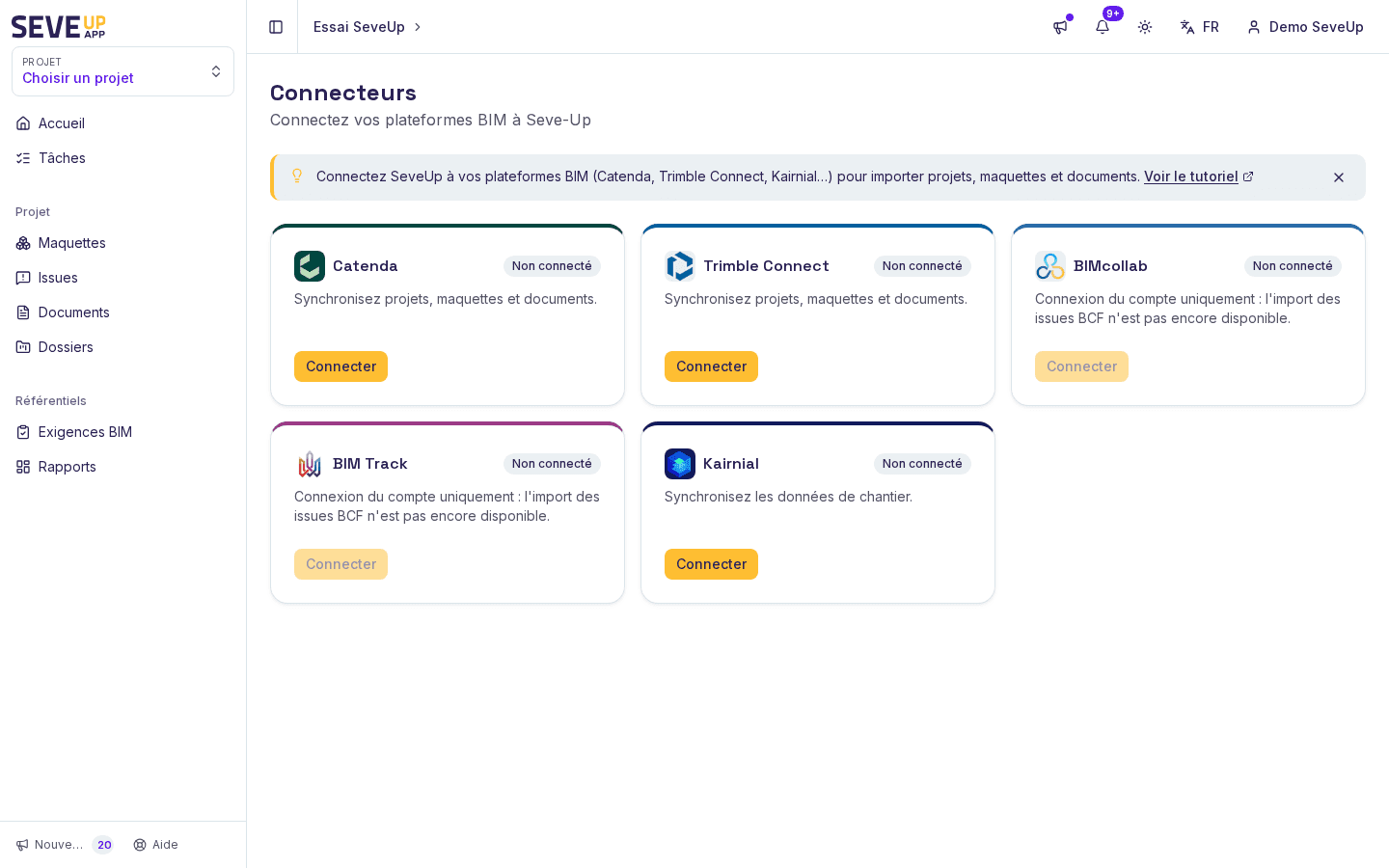
The Kairnial card displays its status and lets you start the connection. Sign in to Kairnial
The window contains “Username” and “Password” fields. Enter your Kairnial account credentials, then select “Connect”. While the request is in progress, the button reads “Connecting…” and is disabled. Do not submit again while that state is visible.
Check the account status
After a successful connection, SeveUp displays a confirmation and the card status changes to “Connected”. If the attempt fails, the screen shows a connection error. The code does not say whether this is caused by credentials, the account or a temporary issue, so check your details and try again.
Open the Kairnial library
Go to the Kairnial library from a space linked to a Kairnial project. The page first checks the connection status and the project reference linked to the current space. When it can display data, it presents three tabs: observations, visas and forms.
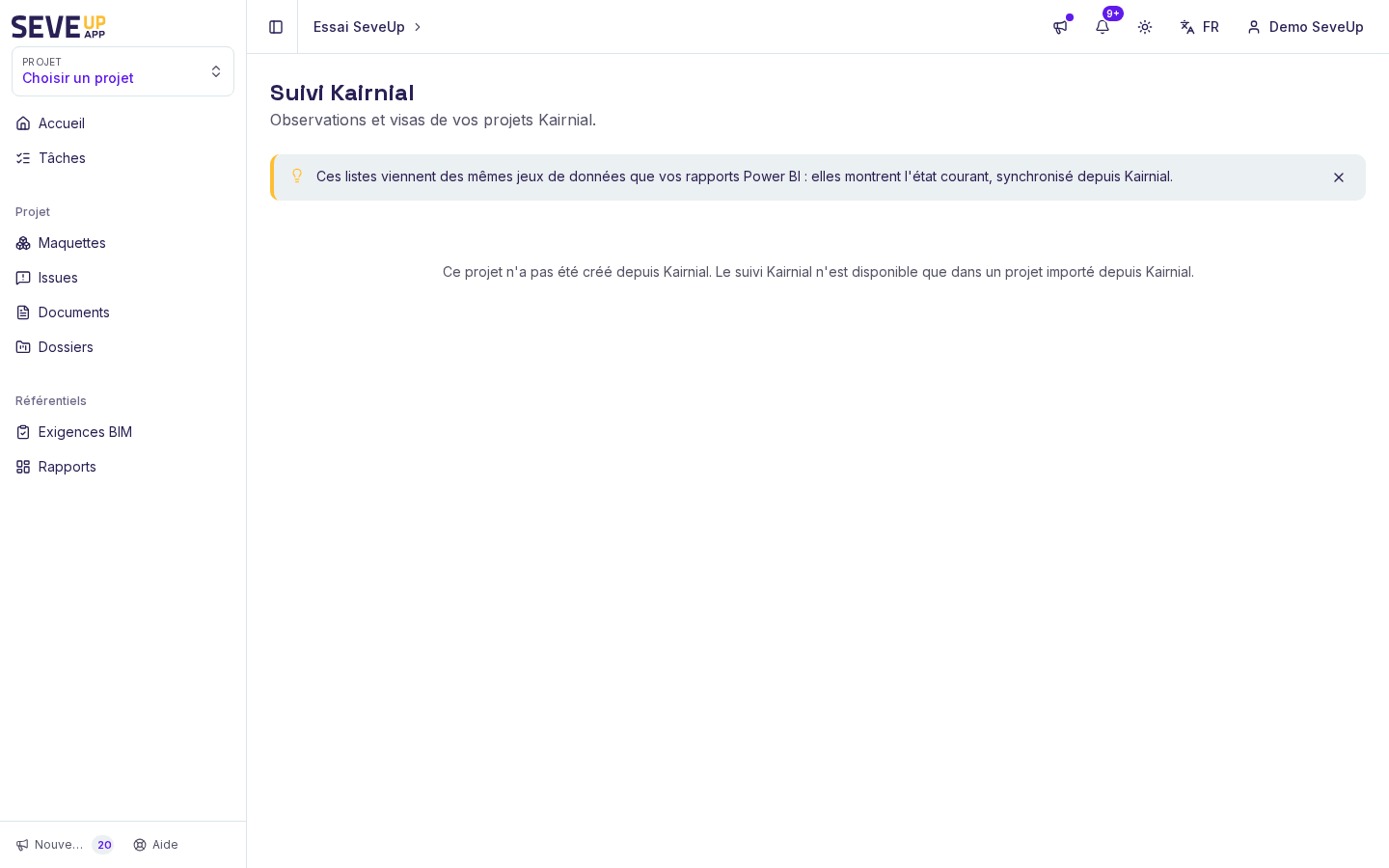
The library presents data for the Kairnial project linked to the current space.
Review the lists
Observations appear in a table with an identifier, description, status, location, due date and author. Statuses also appear as counts. A due date earlier than the current date may be marked as overdue. Missing values are replaced with an indication that the data is not provided, or with a no-status state, depending on the field.
The visas table shows the file name and, when available, its path, circuit or nomenclature label, version, upload date and size. By default, the list keeps the latest version in each version group; files without a group remain in the list. A display control switches from this view to all versions and back to the latest versions.
Forms are shown with their title, status, author, creation date and update date. Counts group the forms by status. Each of the three lists has its own search and shows the number of visible results compared with the total for that list.
Search checks text and numeric values in rows, not just a file name or title. It ignores case and accents; every term entered must appear in a row’s data for that row to remain visible. Remove part of the search if an expected entry does not appear.
What can go wrong
The Kairnial card says the account is not connected
Select “Connect” on the Kairnial card and enter the account credentials in the window. An error may appear if the attempt fails, but the message provided does not distinguish possible causes. After a successful attempt, check that the card status says “Connected”.
The library does not show the project tables
The page does not display data if the current space has no Kairnial project reference. It may also ask you to connect the account before showing the lists. Check the selected space and connection status first; the tables are not available in those states.
A list shows a loading error
The affected list displays an error message and an action to check the connector. The page does not present rows for that list as though they loaded successfully. Check the account status on the Connectors page, then return to the library.
A list is empty, or search returns no rows
An empty state may mean that no observations, visas or forms were returned for the displayed project. An active search may also exclude every row. Clear the search text to tell these cases apart.
FAQ
Does Kairnial sign-in open an OAuth window?
Not in the Kairnial flow shown here. The card button opens a window with “Username” and “Password” fields; credential sign-in and OAuth sign-in are separate flows in the code.
What data does the Kairnial library display?
It has lists for observations, visas and forms, with the fields available in each table. The data comes from the Kairnial project linked to the current space. The page does not promise that every field will be populated.
Does search only look at file names?
No. The code searches the text and numeric values in each row. That includes fields shown in the tables, so search is not limited to a file name.
Does the library show every version of each visa by default?
The initial view keeps the latest version in each version group and retains files without a group. A control lets you show all versions, then return to the latest-version selection.
Keep in mind
The connection gives SeveUp a Kairnial account status; the library also depends on the project linked to the current space. Once those conditions are met, use the tabs and search to review observations, visas and forms, or read the displayed state when data is unavailable.
Try it on your model
Create a free account: repeat these steps on your own files in a few minutes.
Free 14-day trial, no credit card.