

By Julian Bringold, Co-founder of SeveUp ·
Quick answer
To connect Catenda to SeveUp App, open Connectors and select “Connect” on the Catenda card. Once connected, choose a Catenda project and the models to import. You can then start creating the SeveUp project. The page displays connection, access, or import errors when they occur.
Free 14-day trial, no credit card.
Catenda can be connected to SeveUp App from the Connectors page. Once connected, you can enter the project import flow: choose a Catenda project, view its models, and select the ones to import. SeveUp then starts creating the project and importing the selected models. The supplied page code does not show synchronization of BCF comments or issues, so this guide covers the connection and model import only.
The Connectors page displays a card for each platform. The Catenda card shows whether the account is connected and offers an action to connect it. After the account is linked, the project creation flow lets you choose models. Messages in the app distinguish connection, access, and data-reading problems.
Before you start
You need access to the SeveUp App Connectors page and a Catenda account that you can connect. Your browser must also allow pop-up windows, because Catenda authentication opens in a popup. If the browser blocks it, SeveUp displays “Allow popups to connect”.
Connecting an account and importing a project are separate steps. Linking Catenda does not select a project or its models for you. It helps to know which project you want to find before starting the import flow.
Connect Catenda and import models
Open Connectors
Go to the Connectors page in SeveUp App. Find the Catenda card in the list of platforms. It shows the Catenda name, a short description, and the current connection status. The screenshot shows this page and its available connector cards.
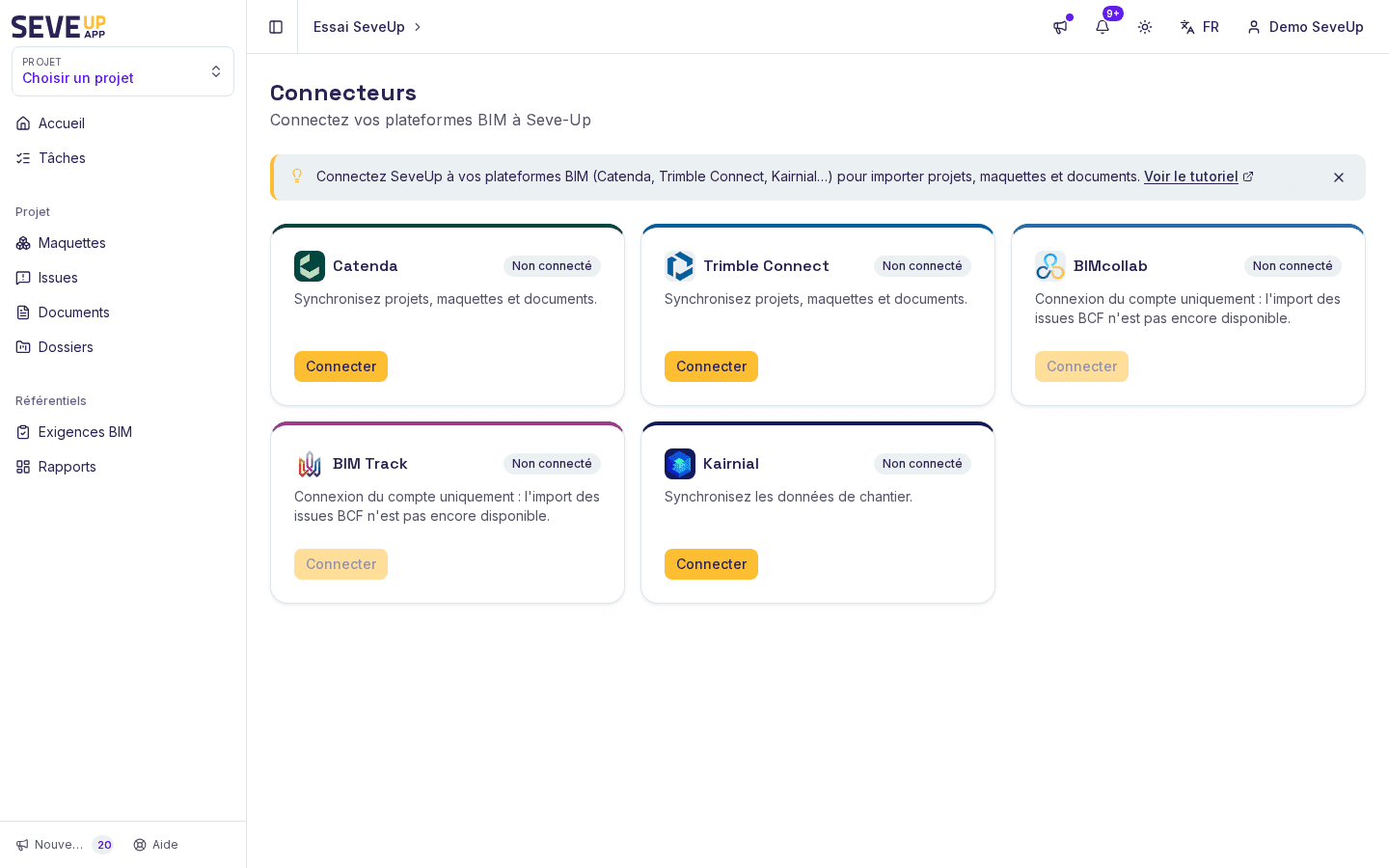
Use the Catenda card to start connecting your account. If the card says “Not connected”, select Connect. A popup opens for the connection flow. If the card already says “Connected”, the account is linked, so you can go to the Catenda project selection.
Complete the Catenda connection
Complete authentication in the window opened by the Catenda connection flow. Catenda controls the authentication screens; they are not described by the SeveUp page. Once the connection is confirmed, the card can show the “Connected” status.
If no window opens, check your browser’s pop-up settings and try again. SeveUp displays “Allow popups to connect” when it cannot open the window. “Connection failed” is a generic message: it can also indicate that the OAuth state is unavailable or that the request timed out.
Choose a Catenda project
From the project creation flow, choose a Catenda project. The dialog is titled “New project from Catenda” and says, “Pick a Catenda project, then the models to import.” SeveUp retrieves the projects accessible to the connected account before you select one.
Retrieving the list can take a moment. “Fetching your Catenda projects…” means the request is in progress. If no project is accessible to that account, the app displays “No project is accessible with this Catenda account.” A retrieval failure displays “Fetching Catenda projects failed.” In that case, select Try again to retry.
Review and select models
After you choose the project, SeveUp reads its model list from Catenda. During this request, the screen displays “Reading the project’s models from Catenda…”. Select the models you want to import, then choose Next to continue. Use Back to return to the previous step.
A project without any available models displays “This Catenda project has no model to import.” If the list cannot be read, the app shows “The model list could not be read” and offers Read the models again. If the preview could not be refreshed, you may see “Catenda did not answer: this preview shows the last known synchronization.” In that case, the screen explains that the preview uses previously known data.
Check all and Uncheck all change the model selection. For a large project, the screen may say that no models are checked by default and ask you to select the ones to import. The app displays the applicable threshold; this guide does not set a value.
Create the project and start the import
Review your selection, then choose Create & import. SeveUp displays “Project creation started, the import is running.” This means creation has started and import is underway; it does not necessarily mean every model is already available.
If project creation fails, the screen may show “Could not create the project”. Follow the message shown in the app and check that the selected project and models are still accessible in Catenda before trying the flow again.
When something goes wrong
The Catenda window does not open
Your browser may be blocking the popup. SeveUp displays “Allow popups to connect”. Allow popups for the site, then select Connect on the Catenda card again. If the flow fails for another reason, “Connection failed” is the generic message provided by the page.
No Catenda projects appear
Check that you are connected to the Catenda account that has access to the project. The page distinguishes an empty result, “No project is accessible with this Catenda account”, from a retrieval failure, “Fetching Catenda projects failed”. For the latter, retry with Try again.
The project or its models are not accessible
If your account cannot access the project, the app displays “This Catenda project is not accessible with your account. Pick another one.” Catenda may also refuse access to a project. The corresponding message asks the project’s Catenda administrator to invite you again, then asks you to retry. Being connected does not guarantee access to every project.
The model list is empty or will not load
A project with no models to import displays “This Catenda project has no model to import.” If reading the list fails, use Read the models again. When Catenda does not respond, the preview may show the last known synchronization. Check the status shown before confirming a selection.
FAQ
How do I connect Catenda to SeveUp App?
Open the Connectors page and select Connect on the Catenda card. Authentication opens in a popup. After the account is connected, select a project in the creation flow to view the available models.
Can I choose which models to import?
Yes. After you choose a Catenda project, the flow displays its models and lets you select which ones to import. For large projects, the message says that no models are checked by default. You can adjust the selection with Check all or Uncheck all.
Does the Catenda connection synchronize BCF issues?
The Catenda card describes synchronization of projects, models, and documents. The supplied code for this flow does not show synchronization of BCF comments or issues. Do not treat this connection as an issue-import feature.
What does the message about an already imported project mean?
If SeveUp says the project is already imported and its import is complete, the message says new versions arrive on their own. It offers the option to open the existing project or go back and choose models that have not yet been imported. Select Open the project to access the project mentioned in the message.
Related pages
This guide covers the Catenda connection and model selection in the import flow. It does not link to other guides because no related help pages were provided here.
Ready to start?
Your SeveUp App workspace is ready as soon as you sign up.
Free 14-day trial, no credit card.