

By Julian Bringold, Co-founder of SeveUp ·
Quick answer
To share BIM issues, create an issue from a model view, then export the issues as a .bcfzip package (BCF 2.1) from the Issues screen. Send the package to the contractor through your usual channel: they open it in their own BCF tool, as long as it reads version 2.1.
Free 14-day trial, no credit card.
Before you start
- Open the model in the viewer. An issue is stored with its model: with no model loaded, SeveUp App refuses to create it.
- The model must belong to a Folder. Otherwise the issue's board cannot be chosen.
- Prepare the view you want to show: camera, selection and section are saved with the issue, along with a thumbnail.
Create an issue and prepare the handoff
Create the issue
In the viewer, open the Issues tab. It lists the issues of the open models. Click New issue here to create an issue from the current view. If you already saved a view, its → BCF button turns it into an issue.
The thumbnail is sent right after creation. It can be missing for a moment, and if it fails the issue is still created.
Fill in the issue
Give it a Title that names the point to check, for example "Missing opening, HVAC duct, level 2". Add Description, Status, Priority, Assignee, Due date and Storey as needed. The values offered depend on the board.
Leave out confidential details the contractor does not need: everything in the issue goes into the package.
Export the .bcfzip package
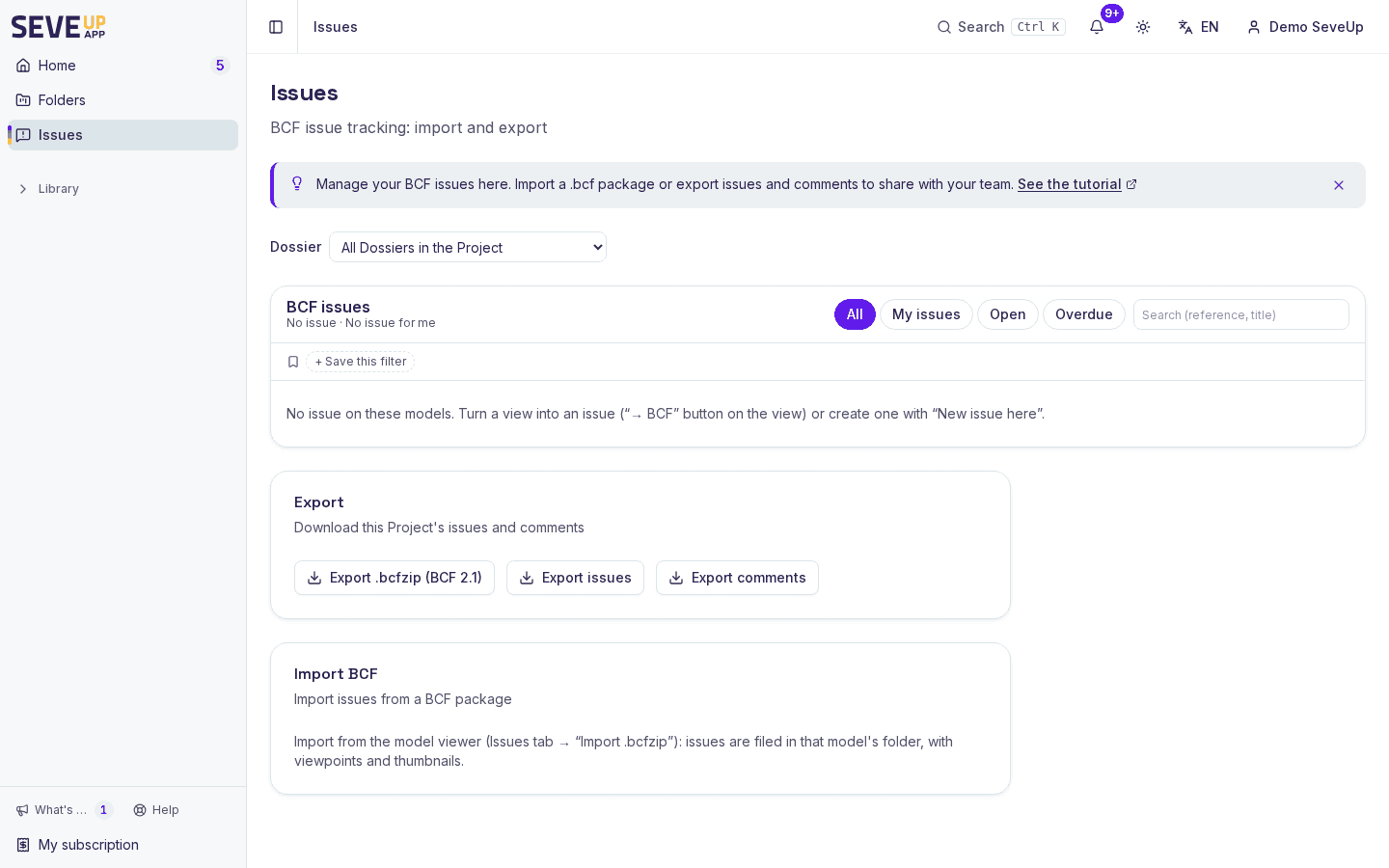
Open the Issues page, click Export, then Export .bcfzip (BCF 2.1). The same menu offers Export issues and Export comments, two CSV files to open in a spreadsheet.
From the viewer, Export .bcfzip exports only the issues of the open models.
Hand over the package
Send the file through the channel you already use with the contractor: email, file-sharing platform or document management system. BCF 2.1 opens in Solibri, BIMcollab, Revit or Navisworks. Before sending, check that the contractor's tool reads this version.
Track the issues
The "All", "My issues", "Open" and "Overdue" presets narrow the list. The search covers the reference or title, and a selector picks the board when there are several. A closed issue never counts as open, nor as overdue, even if its due date has passed.
A saved filter is kept on your account and follows you to your other devices. If the filter server does not respond, SeveUp App uses the filters stored in this browser and says so.
From an issue's page, a viewpoint can be replayed in the viewer. A message flags objects that were not found or BCF data that was not carried over. You can add a comment and attach the current view to it. The history keeps status and assignee changes.
This tracking happens in SeveUp App. It does not tell you whether the contractor received or opened the exported file.
Trimble synchronisation
If the Folder is linked to a Trimble Connect project, the board's "Send to Trimble" setting sends its issues to that project: topics, viewpoints and comments. Existing issues are sent as soon as it is turned on. This setting is for organisation administrators only. For a contractor who does not work in that Trimble project, use the .bcfzip export.
What can go wrong
I cannot create an issue from the model
Check that the model is loaded in the viewer and belongs to a Folder. If the 3D scene is not ready yet, wait for loading to finish and try again.
The thumbnail or viewpoint is missing
The thumbnail is sent after the issue is created: it may still be processing, or missing if the upload failed. For an imported BCF viewpoint, part of the camera, section, hidden objects or colouring may not be carried over. SeveUp App says so when it replays the viewpoint.
I cannot find issues after applying a filter
A preset, the selected board or the search text narrows the list. Choose "All", clear the search and check the board. If the filter server does not respond, only the filters stored in this browser are available.
The contractor cannot open the BCF package
Ask for the message they see and the BCF version their tool reads: the export is BCF 2.1. For an exchange in Trimble Connect, check instead that the Folder is linked to the right project and that sending to Trimble is turned on.
FAQ
How do I send BIM issues to a contractor?
Create the issues as BCF issues in the viewer, then export the .bcfzip package from the Issues page, "Export" menu. Send the file through your usual channel. The contractor opens it in a BCF 2.1 compatible tool.
What is included in the .bcfzip export?
The issues in BCF 2.1 format, with their viewpoints and comments. Data specific to SeveUp App with no BCF equivalent is not carried over. For a table of issues or comments, use the CSV exports in the same menu.
Can I assign an issue and track its status?
Yes. Each issue has a status and an assignee, and the "My issues" preset shows the ones assigned to you. The issue history keeps the changes.
Does the contractor need to use SeveUp?
No. The .bcfzip package opens in a BCF 2.1 tool, without a SeveUp App account. Agree with them on the software and on how you will send the file.
Try it on your model
Create a free account: repeat these steps on your own files in a few minutes.
Free 14-day trial, no credit card.