

Quick answer
SeveUp App brings together BCF issues from your models, showing their status, due date, assignee and viewpoints, then lets you export issues or comments. Importing a .bcfzip package starts from the model viewer’s Issues tab, using the model that should receive the imported issues.
Free 14-day trial, no credit card.
You can search by reference or title, filter open and overdue items, inspect available boards and open an issue in the viewer when its source model is known. Issues synchronised from Trimble or Catenda can also appear in the list, with their source and editing limits shown beside them.
- BCF issue
- A tracked BCF object with a title, status, assignee, due date and one or more viewpoints.
- Board
- The group in which issues are displayed. A board can belong to a SeveUp root folder or come from a synchronised source.
- Viewpoint
- The camera, selection and some visibility settings attached to an issue. A thumbnail may also be available.
Before you start
Sign in to SeveUp App and load the model relevant to your work. To reopen an issue in the viewer, its source model must be known and its identifiers must allow SeveUp to restore the relevant context. Without a loaded model, SeveUp cannot file a new issue in a board.
If you need to import a package, prepare a .bcf or .bcfzip file supported by the import shown in the viewer. The import accepts BCF 2.1 or 3.0 packages. The file is uploaded as an attachment before the server creates or updates the package items.
Review the issue queue
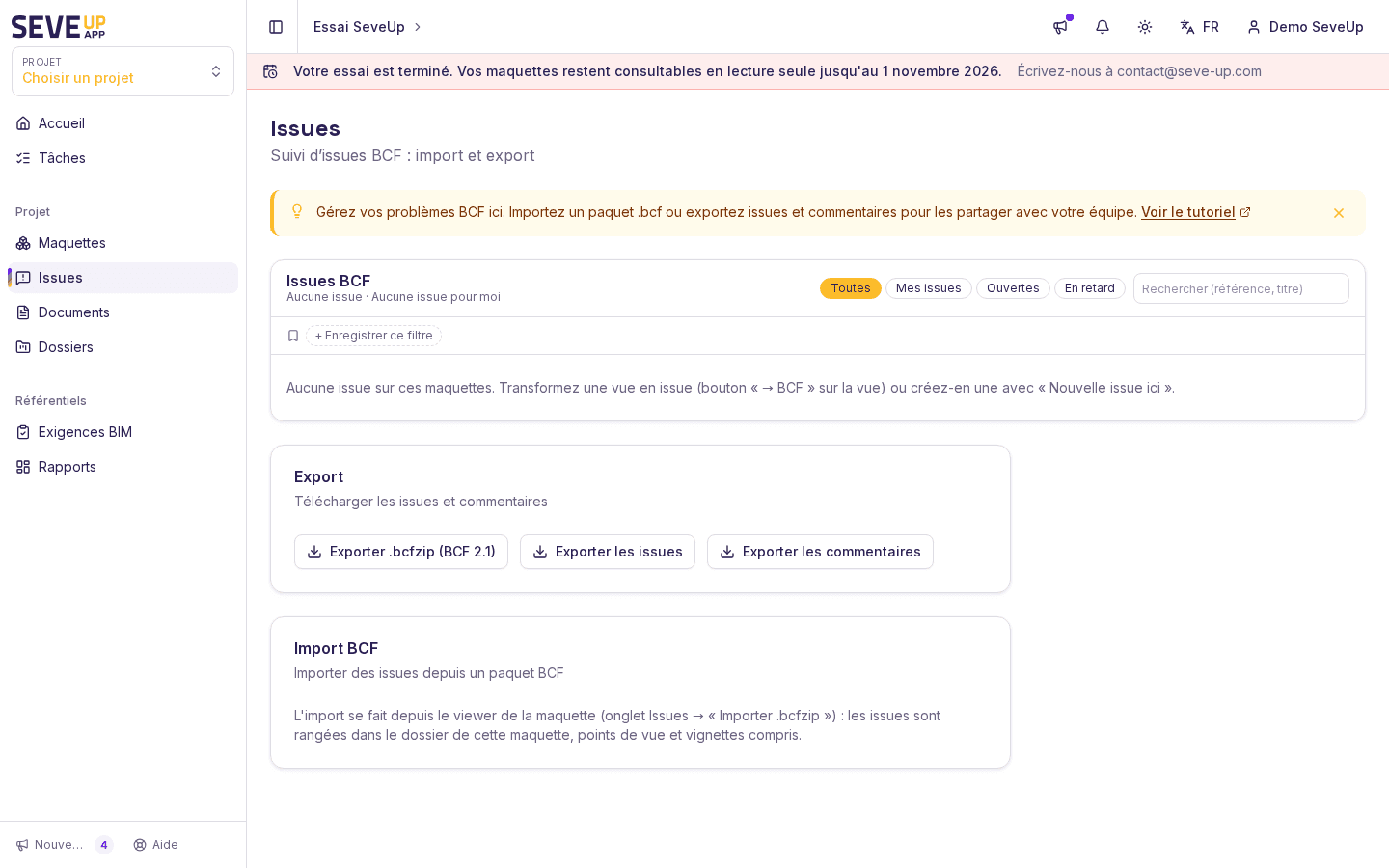
Go to the « Issues » page. Its header shows the total number of loaded issues and the number assigned to you that are not closed. The list includes available boards, including SeveUp boards and boards synchronised from Trimble or Catenda.
The page shows more than issue titles. A row can include the reference, title, status, priority, assignee, storey, due date, comment count and board. A viewpoint thumbnail appears when available. Otherwise, the interface says that the thumbnail is unavailable.
Choose a preset
In the list toolbar, select All, My issues, Open or Overdue. « My issues » keeps issues assigned to you that are not closed. « Open » excludes issues whose status is of type CLOSED. An issue with an unknown status is not treated as closed.Select a board
When several boards are available, open the Board selector and choose All boards or the board you want to inspect. Boards from Trimble or Catenda are identified in the list. Their content may be read-only in SeveUp.Search a reference or title
Enter a term in Search (reference, title). The search checks the reference, title and description when one exists. It changes the visible result only; it does not change issue data.Open the viewer
On a row linked to a model, click Open in the viewer. SeveUp opens the viewer with the issue and its viewpoint when the model link is available. If the source model is unknown, « Origin model unknown » replaces the button.
The three dashboard counters also provide quick views for open issues, overdue issues and issues assigned to you. The status groups cover all loaded issues, while the assignee and storey groups describe only the loaded open issues. The list can be truncated; when that happens, the page shows the displayed count and the total, with the most recent issues in the result.
Save a filter
Named filters can follow your account from one device to another. After choosing a preset, board and search text, click Save this filter. Enter the requested name in the « Filter name » prompt.
The filter appears in the saved-filter bar. Click its name to apply its choices again. To remove it, click the button whose generated label is « Delete the filter “{name}” », with {name} replaced by the filter name. An empty name is not saved, and the page keeps no more than twenty filters.
When the server cannot be reached, SeveUp displays a warning and keeps the browser copy only. A failed account save does not remove that local copy. Try again after the server connection is available.
Import a BCF package
Import does not start from the import card on the global page. That card explains that the operation is performed from the model viewer, in the Issues tab. Open the relevant model, then choose the Issues tab and the Import .bcfzip action.
The package is first uploaded as an attachment. SeveUp then calls the import service with the file identifier and selected model. The report can show created issues, updates, viewpoints, comments, thumbnails and warnings. Issues are filed in the root-folder board of the model, with imported viewpoints and thumbnails when they are present.
Open the Issues tab
In the model viewer, click Issues. Check that the model receiving the package is the one currently open.Import the package
Click Import .bcfzip, then choose the.bcfor.bcfzipfile. The « Importing… » message shows that processing has started.Read the report
When processing ends, review the import report. It separates created issues, updates and viewpoints. Warnings can identify items to check, including GlobalIds missing from the latest revision.
If the package cannot be read, SeveUp shows an error with the reason returned by processing. A general error says that the BCF import failed. A model without processed data cannot be checked for GlobalIds; the report says that instead of claiming that those identifiers are missing.
Export issues and comments
The « Export » card on the « Issues » page provides three downloads. Click Export .bcfzip (BCF 2.1) to download issues as BCF 2.1. Click Export issues to download issues, or Export comments to download comments separately.
The BCF export can cover open models, one board or the whole tenant depending on the export context. The global page provides the tenant-level access. Issues and comments remain separate data sets in the two dedicated actions.
What can go wrong
The list will not load
No issue matches the filters
An issue has no viewer link
A synchronised issue is read-only
The import reports missing GlobalIds
FAQ
Does SeveUp App create BCF issues inside an imported package?
Can I track overdue issues?
Are saved filters available on my other devices?
What can I export?
Your feedback
Did this page help you find, filter or export an issue? Use the help feedback widget to report what was missing or what slowed you down. A precise note about a label or error state helps decide which part of the procedure should be clarified.
Related pages
This page covers the global issue queue, filters, viewer-based import and available exports. Related topics will be added to the help linking structure once a matching page is published in both languages.
Try it on your model
Create a free account: repeat these steps on your own files in a few minutes.
Free 14-day trial, no credit card.