

By Julian Bringold, Co-founder of SeveUp ·
Quick answer
To check a submission, open “Check a submission,” choose a model, then select its revision. The page shows model-health findings separately from gaps against IDS requirements. Review both result sections, then use “Send back to the team” when blocking errors or IDS gaps are present, or open the model in 3D to continue the review.
Free 14-day trial, no credit card.
Checking a model submission here means reviewing the results associated with a revision: the model-health checks and, when available, gaps against linked IDS requirements. The “Check a submission” page brings these views together so you can see what may need attention before integration. It does not run the checks itself; it displays results recorded for the selected revision.
The model list comes from the current project. After selecting a model, you can inspect a revision, open a sample object in the 3D view, or prepare a message to send back when the findings call for it. This guide explains how to read the results without treating a warning, a failed health check, and an IDS gap as the same thing.
Before you start
The page opens from the Tasks page (“Check a model submission”), from the Home page (“Check a delivery”) or, for a given revision, from the “View the check” entry of that revision’s actions menu on the model page.
The model must be in the current project. If the list is empty, the page offers “Add a model”; add one to the project before continuing. This page shows revisions already associated with a model. It is not a submission form.
Health and IDS results load separately. One section can be available while the other is still loading or reports an error. Wait if a check is still running. An unavailable result is not evidence that the model passes.
Check the revision
Choose a model
Find the model you want to review in the selection section and click its name. The list contains models from the current project. If there are more than twelve, a search field appears; enter part of a model name to filter the list. There is no need to search when the list is shorter.
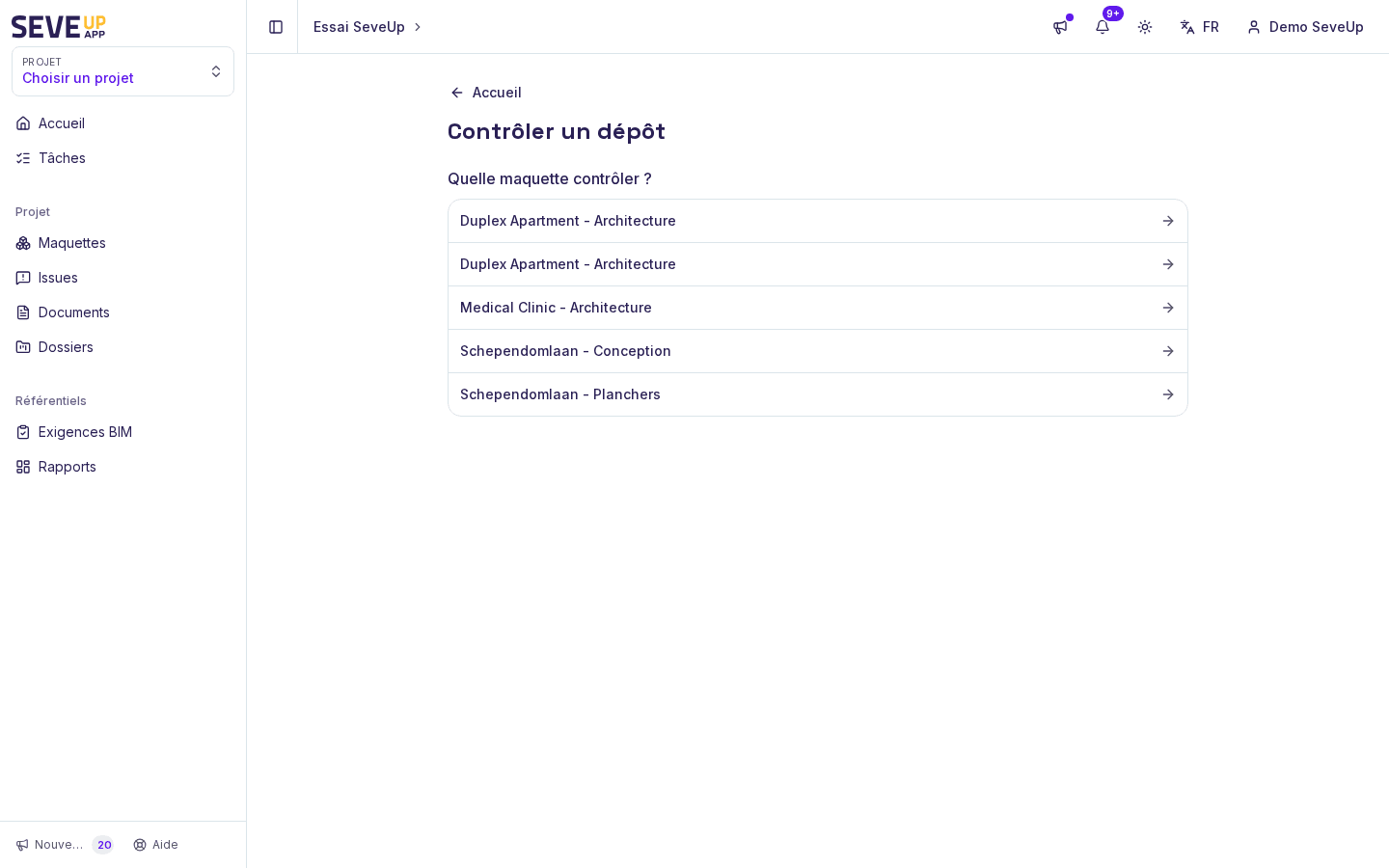
Choose the model in the project that you want to review. If no model appears, check that you are in the intended project. “No model in this project.” means the list is empty; “Add a model” takes you to the model library. If loading fails, the page shows an error instead of a usable list.
Choose a revision
The page shows the selected revision’s number and submission date when one exists; otherwise, the interface displays “not provided”. If the model has several revisions, use “Revision” to display another one. Revisions are listed from newest to oldest. When no revision is specified on opening, the newest one is shown.
Check the date as well as the version number. A displayed check belongs to the selected revision, which may not be the latest version you have in mind. If the model has no revision, this screen has no results to show.
Read model health
“Model health” separates the overall check state from the reported findings. If the check is queued or in progress, return later to see its result. A completed check with no findings displays “No defect: all applicable checks pass.”
Findings marked “Error” or “Warning” appear with a title and, when supplied by the result, a count of affected objects. Errors and failures are treated as blocking items when preparing a return message; warnings are not included in that message. For a listed sample, “See in the model and create an issue” opens the model view on the identified object. The link describes a possible next step, but clicking it does not by itself show that an issue has been created.
Read IDS requirement gaps
“IDS requirement gaps” lists applicable requirements whose score is below 100%. Each row shows the requirement name, the number of non-compliant objects out of the applicable total, and a percentage score. Requirements that do not apply are not counted as gaps.
If no IDS requirement is linked to the model, the page says so and offers “Create requirements.” If requirements are linked but none apply to any objects in the model, nothing could be evaluated. That differs from a result where all applicable requirements are met.
Choose what to do next
“What next?” gathers the available follow-up actions. When there are no blocking errors or IDS gaps, the message says the submission can be integrated. If non-warning health errors or IDS gaps are present, “Send back to the team” opens a prepared message.
The message includes the model name and revision, blocking health findings, IDS gaps, and a link to the check details. For each health finding, it can include up to five object IDs supplied as examples. Review the text before sending: the field shown on the page is read-only, though you can copy the message elsewhere.
“Copy” puts the message on the clipboard; after a successful copy, the label changes to “Copied.” “Send by email” prepares an email with the message subject and body. To continue a visual review, “Open the model in 3D” opens the 3D view for the revision.
When something goes wrong
The model list will not load
The page shows “Can’t load this project’s models.” when loading fails. Check the current project and try again later. If the list loads but has no entries, the page says there is no model in the project; that is different from a loading error.
The model has no revision
“This model has no revision yet.” means this screen has no revision to review. It therefore has no health-check or IDS results to display for that model.
The health check is not finished
A queued or running check is not a compliance result. Return in a few minutes, as the page suggests. If the check failed, the page reports that state; it also reports when a model is too large for the health check.
Health or IDS results will not load
The two sections can fail independently. An error in one does not establish anything about the other; the page shows a message for the affected section. Review the results again before deciding that no correction is needed.
FAQ
How do I check a specific model revision?
Choose the model, then use “Revision” if the selector is shown. The submission date helps confirm that you have the right version. The displayed results belong to the revision shown on the page.
Does a warning prevent me from sending a submission back?
Health warnings are displayed, but the page does not include them in the prepared message to the team. Health errors and failures, along with IDS gaps, are the findings used to offer the return action. Read each warning in context nonetheless.
Why does an IDS requirement have no score?
A requirement that does not apply to the model cannot be evaluated against its objects. The page distinguishes this from a result where every applicable requirement is met. Read the message in the IDS section to see which case applies.
Does clicking a sample create an issue?
“See in the model and create an issue” opens the 3D model view on the sample object. Its label points to a possible next step, but the click only opens the view on that object: no issue exists until you create it.
Try it on your model
Create a free account: repeat these steps on your own files in a few minutes.
Free 14-day trial, no credit card.