

Quick answer
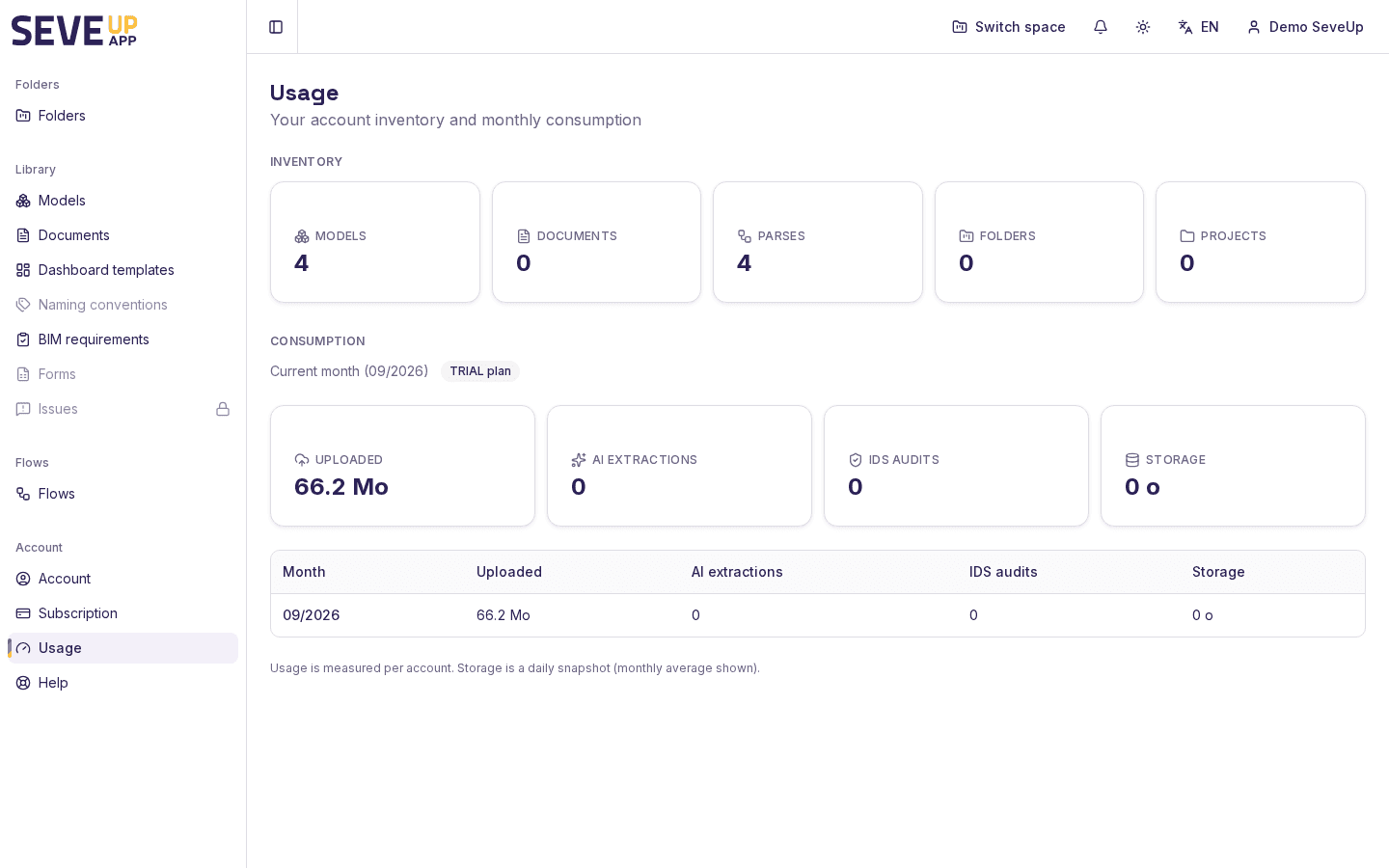
To check your usage, open your SeveUp App account, go to the « Usage » section, then select the « Inventory » tab to see your models, documents, parses, folders, and projects, or the « Consumption » tab to track your monthly usage.
Free 14-day trial, no credit card.
Introduction
The « Usage » screen in SeveUp App brings together two key pieces of account information: your resource inventory and your monthly consumption. It is the best place to monitor your activity, check that your counters are consistent, and anticipate any needs. This page is for all users and requires no technical knowledge.
Prerequisites
- Be signed in to your SeveUp App account.
- Have read access to your account.
Open the Usage section
- Sign in to SeveUp App.
- Go to your account.
- Click the Usage menu item.
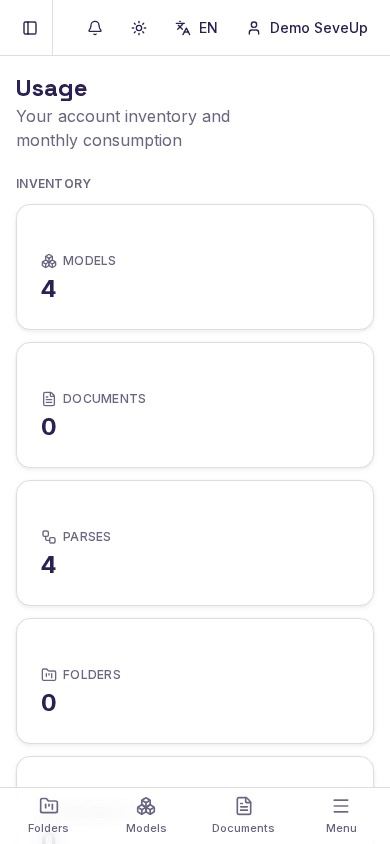
The screen now shows the title « Usage » and the subtitle « Your account inventory and monthly consumption ».
Check your inventory
By default, the Inventory tab is active. It lists the following counters:
- Models: number of models created or imported.
- Documents: number of documents in your account.
- Parses: number of documents automatically parsed.
- Folders: number of folders organized in your account.
- Projects: number of projects created.
These values give you a global overview of your resources.
Track consumption
Click the Consumption tab to view your monthly account usage. This tab aggregates the volumes consumed during the current month and helps you track your activity trends.
Glossary
- Parse
- Automatic analysis of a document to extract its structure and usable data.
- Model
- Digital representation of an item created or imported into SeveUp App.
What can go wrong
| Issue | Likely cause | Solution |
|---|---|---|
| Counters stay empty | No data has been created yet | Import or create your first resource |
| Values do not load | Connection or server issue | Refresh the page or try again later |
| Consumption looks incorrect | Synchronization delay | Wait a few minutes and reload the screen |
FAQ
Where can I find my monthly consumption?
Go to Usage, then click the Consumption tab.
What does the « Parses » counter mean?
It shows how many documents have been automatically parsed by SeveUp App.
Are the figures updated in real time?
Inventory counters are usually updated immediately. Monthly consumption may be slightly delayed.
Can I export my usage data?
The « Usage » screen is read-only. To export data, use the export features available on each individual resource.
Was this article helpful?
Pick your plan
Compare the plans and their limits, then start with the free trial.
Free 14-day trial, no credit card.